The Complete Guide to IBM MQ Monitoring
IBM MQ (formerly WebSphere MQ or MQ Series) is the backbone of messaging in countless enterprise systems. In fact, IBM reports that IBM MQ is used by 85% of Fortune 100 companies, underscoring how critical it is for global businesses. With such a pervasive and mission-critical technology, ensuring reliable monitoring of IBM MQ is essential. Effective MQ monitoring means more than just watching a few queues; it involves tracking performance, health, and security of your entire messaging ecosystem in real time.
In this comprehensive guide, we’ll explore everything you need to know about monitoring IBM MQ. From key concepts and must-watch metrics to advanced strategies and tools, each section will provide actionable insights. Whether you’re an MQ administrator, a middleware engineer, or an IT leader, this guide will help you understand how to keep your MQ infrastructure running smoothly and efficiently.
Along the way, we’ll highlight modern approaches – including agentless monitoring techniques and unified administration – that can simplify operations. (For example, solutions like Infrared360 leverage an agentless architecture and a centralized portal to make MQ monitoring and management easier than ever.)
By the end of this guide, you’ll not only grasp the fundamentals of IBM MQ monitoring, but also learn how to apply best practices for alerting, automation, and security in your environment. Let’s dive in and see how to maintain peak performance and reliability for your MQ systems, and how modern tools can help streamline the process.
Key Concepts in MQ Monitoring
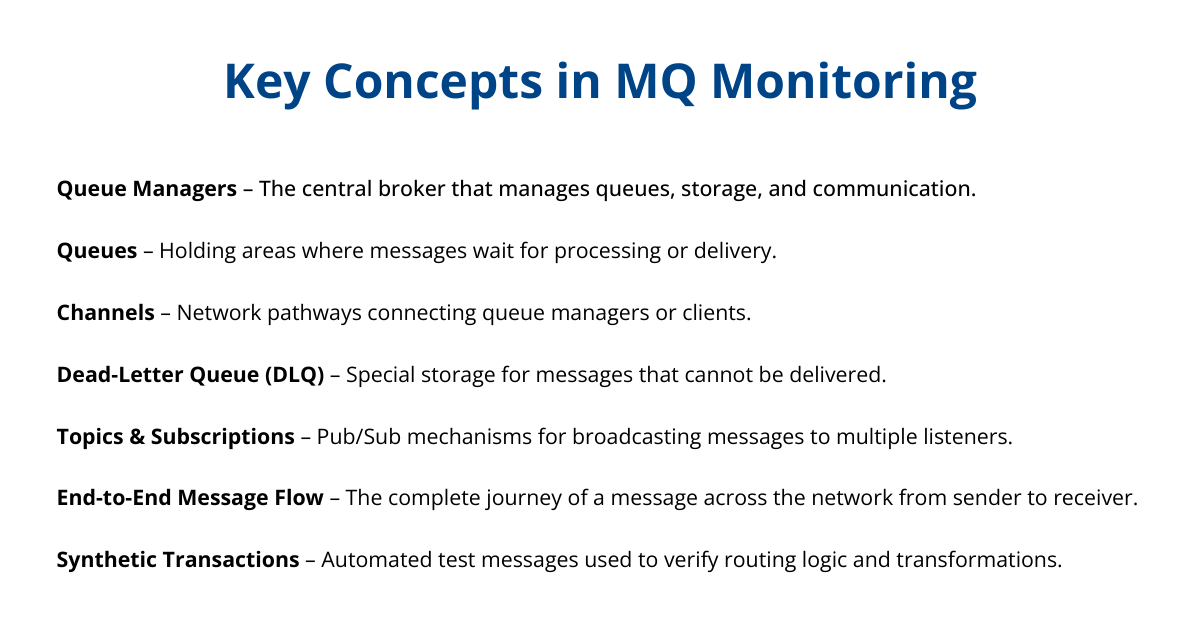
Before diving into specific metrics and techniques, it’s important to understand the core components of an IBM MQ environment and what MQ monitoring entails. IBM MQ is built around a few key elements – each of which needs attention to ensure your messaging system runs smoothly:
Queue Managers: The queue manager is the central broker of MQ; it hosts and manages queues, handles message storage/retrieval, and orchestrates communication via channels. Monitoring a queue manager means keeping an eye on its overall health (is it up and running?), resource utilization (CPU, memory, disk for logs), and any internal errors. A queue manager issue can bring down your messaging, so it’s the first component to watch closely.
Queues: Queues are where messages reside waiting to be processed or delivered. You should monitor each queue’s depth (how many messages are piled up), the rate of incoming and outgoing messages, and how long messages stay in the queue. A growing queue could indicate a slow or stopped consumer, while an empty critical queue might indicate a stopped producer. Understanding normal queue usage patterns is a key concept so that you can spot anomalies.
Channels: Channels are the pathways that connect different MQ components (e.g., between queue managers, or between clients and a queue manager). There are various types (sender-receiver channels, server-connection channels for clients, etc.), but all channels should be monitored for status and errors. If a channel goes down, messages between systems can’t flow. Key things to watch include whether channels are running or in retry mode, how often they are restarting, and the throughput or latency of messages through the channel. A robust monitoring strategy will quickly alert you to channel failures or bottlenecks.
Dead-Letter Queue (DLQ): MQ systems typically have a special dead-letter queue where messages are routed if they cannot be delivered to their intended destination. Monitoring the DLQ is crucial – if messages start accumulating here, it signals problems like missing queues, security access issues, or other delivery failures. By keeping an eye on the DLQ, you can catch issues that would otherwise be hard to detect (since MQ will dutifully hold undeliverable messages instead of discarding them).
Topics and Subscriptions: If you’re using IBM MQ’s publish/subscribe features, the equivalent of queues are topics (for publishing messages) and subscriptions (which deliver those messages to subscriber queues). Monitoring in a pub/sub scenario means tracking the number of active subscriptions, the rate of messages published to each topic, and any dropped messages or subscription errors. This ensures that published messages are reaching all subscribers as expected.
End-to-End Message Flow: Beyond individual components, a key concept is end-to-end monitoring—understanding how a message moves from sender to receiver across the MQ network. End-to-end monitoring helps confirm whether a message successfully travels through all required queue managers, channels, brokers, and consumer applications. It can reveal where delays or breakdowns occur, such as identifying if a message failed due to a network issue, an application problem, or MQ itself.
However, while end-to-end monitoring shows delivery success or failure, it doesn’t always provide insight into whether a message was processed or transformed correctly along the way. That’s where synthetic transactions come in. Synthetic transactions are automated test messages sent through the system with specific content or headers to verify routing and transformation logic—especially in scenarios involving brokers like IBM ACE. These help confirm that, for example, a currency conversion or header-based routing works as expected.
Synthetic transactions are primarily used in non-production environments to validate processing logic without the need to write custom programs. By combining end-to-end monitoring with synthetic transaction testing, you gain both broad visibility and targeted assurance that your MQ flows behave as intended.
In summary, MQ monitoring isn’t just about one metric or one server – it’s about keeping tabs on the whole ecosystem: queue managers, the queues they host, the channels connecting everything, and the messages moving through. Having a clear grasp of these concepts lays the groundwork for effective monitoring. In the next sections, we’ll discuss exactly which metrics to track and how to approach monitoring for various MQ setups.
Metrics You Should Be Tracking
Knowing what to monitor in IBM MQ is just as important as how you monitor. Exactly what metrics are critical to monitor will vary from organization to organization. Here are some of the key metrics and indicators that most MQ administrators agree they should keep a close eye on:
- Current Queue Depth: This refers to the number of messages currently sitting in a queue. It’s one of the most critical metrics to watch. If the current depth is steadily approaching the queue’s maximum capacity, that’s a red flag. A queue filling up could mean consumers aren’t keeping up or there’s a downstream issue. Monitoring queue depth trends over time helps predict bottlenecks before they become incidents. Set thresholds on queue depth (e.g., warn at 80% maximum depth) to get early alerts.
- Maximum Queue Depth: In tandem with current depth, know the configured maximum depth for your important queues. If a queue’s max depth is set too low for peak loads, you might hit that ceiling and block new messages. Conversely, a very high max depth might mask issues (messages will pile up silently). Tracking the percentage of max depth used helps in capacity planning.
- Oldest Message Age: How long has the oldest message been sitting in the queue? This metric tells you if messages are getting processed in a timely manner. IBM MQ is designed not to lose messages, so a message can technically sit indefinitely, but if something has been on a queue for hours when normally your queues drain in minutes, you likely have a stuck consumer or a problem downstream. Monitoring the age of the oldest message in each queue ensures you catch these delays. For instance, if the oldest message age exceeds a normal threshold (say 5 minutes or 1 hour, depending on your use case), it’s time to investigate. If your monitoring solution includes administrative and automation capabilities, consider setting up an automated action to help resolve the issue before it escalates.
- Message Throughput (Put/Get Rates): Keep track of how many messages are being put to and gotten from queues per second (or per minute). Throughput metrics help you understand the load on your MQ system and detect unusual slowdowns or spikes. For example, if the message intake rate drops to zero unexpectedly on a queue that usually sees constant traffic, that could indicate an upstream outage. Likewise, a sudden spike in messages could foretell a backlog if consumers can’t scale to match. Monitoring throughput also helps with performance tuning and capacity planning.
- Dead-Letter Queue Depth: As mentioned earlier, the dead-letter queue (DLQ) is where messages end up when they can’t be delivered. A rising DLQ message count is a clear signal something is wrong. This metric should normally be zero or very low. If it starts increasing, each message in the DLQ should be investigated (e.g., was the destination queue missing or full? was there a data format error?). Effective monitoring will alert you immediately when any message lands in the DLQ so you can address the root cause.
- Channel Status and Errors: Channels provide the pathways for messages between queue managers and clients. For each channel, monitoring its status—whether it’s running, stopped, or retrying—is essential. Channel retries happen automatically when a channel fails to start; tracking how often this occurs can help identify unstable connections or configuration issues. IBM MQ channels do not report latency as a metric. A channel is either active or inactive; any perceived delays are related to message handling or network conditions, not the channel itself. Channel resets, on the other hand, are manual administrative actions used in specific reconciliation scenarios and are not typically monitored.
- Connection Count: On queue managers that accept client connections (via server-connection channels), the number of connected client applications is a metric to watch. A sudden drop in connections might indicate an application crash or network break, while an unexpected surge could potentially overload the queue manager. There are also limits on connections and channel instances; monitoring ensures you don’t exceed those and that each client is behaving as expected.
- Resource Utilization (CPU, Memory, Disk): Although IBM MQ is generally efficient, the underlying server resources can become a bottleneck under heavy load or misconfiguration. It’s wise to monitor the CPU and memory usage of your queue manager processes. If CPU is maxed out, message throughput may suffer; if memory usage climbs, the queue manager might be struggling with large messages or many open queues. Disk utilization is critical for MQ as well – for example, the queue files and log files consume disk space. If you run out of disk (or hit a log file usage threshold), MQ can stop processing. Keeping tabs on disk space and log capacity, especially if you use persistent messages (which are logged for reliability), is a preventative measure.
- MQ Event Alerts: IBM MQ can generate events for significant occurrences – for example, queue full events, channel stopped events, authority failures, etc. While not a metric in the numeric sense, these events are important to monitor. Make sure your monitoring solution captures MQ event messages or traps so that things like security violations or service interruptions are logged and alerted immediately. These events often tell you why a metric spiked (e.g., an event will accompany a channel failure and explain the error).
Every MQ environment might have some additional specific metrics of interest (for instance, if you use IBM MQ in a clustered setup, you might track cluster-specific metrics, or if using MQ Advanced features, you might monitor those). But the list above covers some of the fundamental metrics that provide a health check for any IBM MQ deployment. For most, keeping a close watch on these can give you a solid pulse on your messaging system’s performance and reliability at all times.
Monitoring Strategies for Different MQ Setups
Not all IBM MQ environments are alike. Your monitoring approach should adapt to the way MQ is deployed in your organization. Let’s discuss a few scenarios and strategies:
On-Premises vs. Cloud Deployments
IBM MQ can run on traditional on-premises servers as well as in cloud or containerized environments. If you manage MQ on-premises, you typically have full control of the servers and can install monitoring tools locally. In this scenario, some teams use IBM’s built-in tools or custom scripts on each server. However, a more efficient strategy is to use a centralized, agentless monitoring solution that can reach into each MQ instance directly. This avoids installing heavy agents on every server and simplifies maintenance.
For cloud deployments of MQ (for example, IBM MQ on IBM Cloud, or MQ running in AWS/Azure, or in containers via Kubernetes/OpenShift), the monitoring strategy may differ. You might not have direct server access, so leveraging the cloud provider’s monitoring (like CloudWatch on AWS or Azure Monitor) for basic resource stats is useful. But you’ll still want MQ-specific insights (queue depths, etc.) that general cloud monitors don’t provide. Look for a cloud-native monitoring tool that can connect to your MQ remotely via secure APIs or connections. Cloud-ready tools (such as Infrared360) can often be deployed as a service or in a container themselves, and offer web-based access to monitor MQ regardless of where it’s running. The goal is to achieve the same depth of MQ monitoring in the cloud as you would on-prem, including real-time metrics and alerting, without needing low-level OS access.
Scaling from a Single Queue Manager to an Enterprise
A monitoring strategy that works for a small deployment might not scale for a large one. If you have just one or two queue managers, it might be feasible to check things manually or use IBM MQ Explorer with some scripts. But in an enterprise with dozens or hundreds of queue managers (spanning multiple data centers or regions), you need a scalable, unified approach.
In such enterprise scale deployments, MQ is an essential part of an integration architecture. It’s rare that one would be managing IBM MQ alone. Most enterprise deployments are managing MQ with other elements of the integrated architecture, like IBM ACE, WAS and other application servers, Kafka, or others. Whether you’re managing IBM MQ alone, or as part of an integrated architecture, for large-scale MQ network, it’s important to have a centralized dashboard where you can see the status of all queue managers and key metrics at a glance – and also manage the other elements of your middleware architecture. This “single pane of glass” helps operations teams quickly identify where a problem is occurring in a complex topology. Organizing your monitoring views by environment or location (e.g., production vs. test, East Coast data center vs. West Coast) can make it easier to drill down.
Performance and capacity planning also become bigger challenges at scale. In a large setup, you should implement metric baselines for each system – what is the normal queue depth on QueueManager_A? What is the typical message rate on Queue_B? Establishing a baseline gives you the reference you need to help you detect anomalies relative to each system’s norm. An advanced monitoring and administration platform will have native visualization and analytics engines, enabling real-time and historic anomaly detection and proactive operational oversight. These built-in capabilities eliminate the dependency on custom integrations with third-party tools such as Grafana, thereby reducing the need for specialized development resources. This not only accelerates deployment and lowers administrative overhead but also enhances scalability, future-proofs your monitoring architecture against staff turnover, and mitigates the risks associated with maintaining custom scripts or unsupported codebases.
High availability and clustering add another dimension. Many enterprise MQ setups use HA queue managers (multi-instance or failover pairs) and/or MQ clusters to distribute load. Your monitoring needs to account for these by tracking the health of backup instances and cluster-specific components. For example, ensure your tool monitors cluster transmission queues and cluster receiver channels, since a problem there can affect multiple queue managers. When an HA failover occurs (one node of a queue manager pair taking over), the monitoring system should detect the role switch and continue tracking the new primary without confusion – ideally with an alert that a failover happened. A robust monitoring strategy includes testing these scenarios (e.g., during DR drills) to confirm your tooling catches them appropriately.
In summary, as your MQ footprint grows, lean on solutions that are built to aggregate and manage large numbers of MQ objects. A lightweight, agentless system can reduce overhead in big deployments, and features like centralized visibility and native visualisations for analytics become increasingly valuable.
Multi-Team and Multi-Environment Monitoring
Another consideration is how to support different teams or business units that use IBM MQ. In many organizations, MQ is a shared service used by multiple application teams. You might have separate environments for development, QA, and production, and different administrators or support teams for each. The monitoring strategy should enable segmented visibility – so each team can focus on the queues, topics, or messages they care about (or are allowed to access), without getting lost in unrelated data, risking accidental changes to someone else’s queues, or being out of compliance with data privacy or other regulatory oversights.
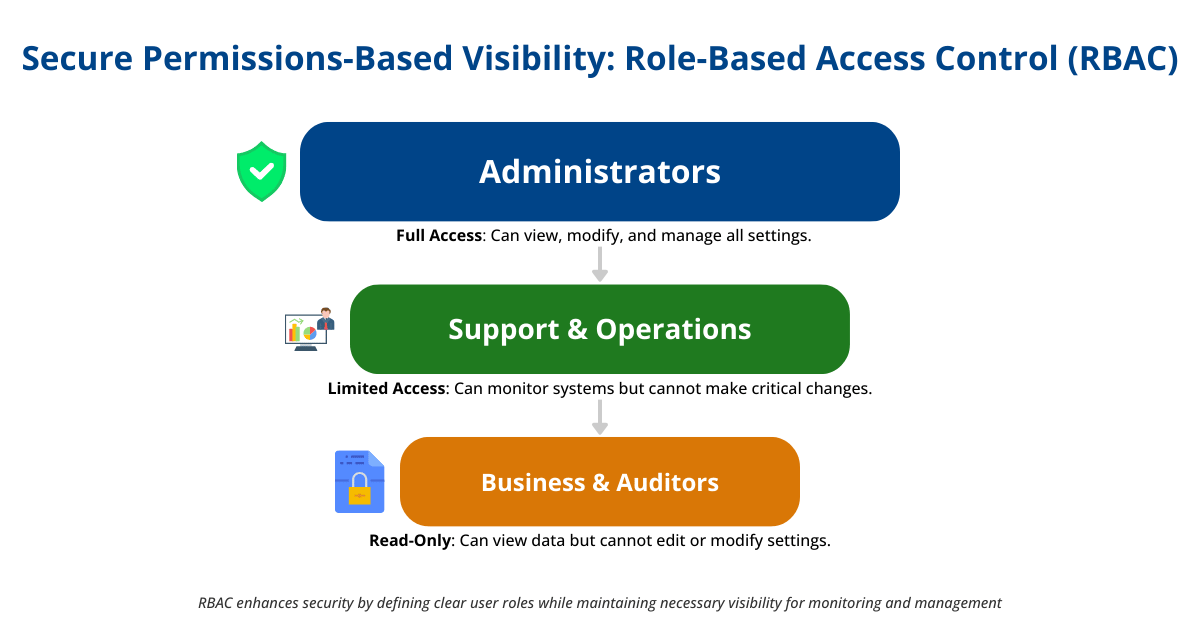
One approach is to set up role-based access control (RBAC) in your monitoring tool. This way, a user from Team A might only have permission to view (or manage) the MQ objects related to Application A, while Team B’s users see their own. For example, Infrared360 offers a capability called Trusted Spaces™, which lets administrators create logical “spaces” for different teams or departments. Each space can be confined to certain queue managers or queues, ensuring that users only see and interact with the parts of MQ that are relevant to them. This promotes security and organization – developers can self-service monitor their queues without needing broad admin privileges, and operations staff can delegate responsibilities safely.
Multi-environment support is also key. You might want to run one monitoring instance that covers Dev, QA, and Prod, but you’ll likely want to filter or separate views for each (since an alert in Dev at 2 AM is far less urgent than one in Prod, for example). A good strategy is to tag each queue manager or object in the monitoring configuration with an environment label and use those tags in your alerting rules and dashboards. That way, you can easily toggle to view “only Production” or have alerts automatically include which environment is affected.
In practice, accommodating multiple teams and environments might also involve setting up different alerting channels (Ops team gets all critical prod alerts, dev teams get their own dev/test alerts, etc.). The overarching goal is to unify monitoring under one platform while still allowing a tailored experience for each stakeholder. By leveraging RBAC and features like Trusted Spaces, you avoid the chaos of everyone using separate tools or stepping on each other’s toes in one big tool. Instead, you get centralized control with distributed visibility – the best of both worlds for MQ monitoring.
The right monitoring approach can make all the difference. See how Infrared360 simplifies middleware monitoring with real-time insights and agentless visibility.
Tools and Technologies for MQ Monitoring
When it comes to MQ monitoring, choosing the right tools can make all the difference. Approaches include using IBM’s native tools, third-party enterprise monitoring suites, or specialized MQ-centric solutions. Here’s a look at the landscape and what to consider:
Native IBM Tools: IBM MQ comes with basic tooling such as IBM MQ Explorer, a GUI that allows you to administer and view status of MQ objects. MQ Explorer can show current queue depths, channel statuses, and so on. However, it’s a desktop tool intended for manual use, not automated 24/7 monitoring or alerting. It lacks alerting, automation, historical reporting, audit logging, and multi-platform support—features that are increasingly necessary for enterprise-grade compliance and performance. It does provide command-line utilities and the ability to generate event messages, which some teams hook into scripts or custom dashboards. While these native options can be useful for simple setups or ad-hoc checks, they do not meet the needs of a robust monitoring regime needed for modern MQ environments.
General Monitoring/APM Solutions: Some organizations use general Application Performance Monitoring (APM) or infrastructure monitoring tools—such as Dynatrace, Instana, or Splunk—to observe IBM MQ alongside other systems. These platforms often rely on agents installed on MQ hosts or plugins to extract metrics, enabling high-level visibility and correlation across IT environments. This integrated view can be beneficial for identifying application-wide trends or infrastructure issues where MQ plays a role.
However, these tools typically treat MQ as just another data source, offering only surface-level insights. They might alert you that a queue’s depth is too high or that a channel has stopped, but they rarely provide the depth needed to diagnose the root cause, take corrective action, or administer MQ directly.
Additionally, agent-based tools can increase administrative complexity, especially in environments with strict access controls, distributed queue managers, or custom channel security. A native MQ-aware solution avoids these pitfalls, simplifying setup and allowing secure, role-based access aligned with how MQ operates in production.
Purpose Built MQ Monitoring Platforms: Dedicated IBM MQ monitoring solutions are designed specifically for the nuances of MQ. Purpose-built MQ monitoring solutions go beyond metrics—they offer context-specific analytics, intuitive MQ object navigation, real-time alerting tied to MQ-specific events, and the ability to act immediately (e.g., clearing queues, restarting channels, or modifying configuration). Infrared360 is an example of a specialized platform: it’s built for middleware like IBM MQ and provides a web-based portal for unified monitoring and administration – no agents or scripts needed. Such tools typically support monitoring multiple MQ environments from one console and offer advanced features (which we’ll detail later in this page). The advantage here is focus – they cover MQ (and often related middleware) in depth, and are built with MQ administrators in mind. This means things like MQ-specific alerts, knowledge of MQ events, and the ability to issue MQ commands or remediate problems right from within the tool.
Open Source and Custom Solutions: Some teams build their own monitoring by using IBM MQ’s APIs (like PCF commands or community supported libraries likeIBM Open Enterprise SDK for Go ) These setups often route metrics into open-source platforms like Prometheus and Grafana, using exporters that expose queue manager and queue-level data. This DIY route can work and may appeal to teams aiming to avoid licensing costs.
However, the up-front and ongoing investment is significant. Authentication and access control must be designed securely for each queue manager. You’ll need to define alerting logic, handle message parsing, and maintain dashboards—all without the benefit of MQ-native insight. When IBM MQ is updated or your infrastructure scales, these fragile pipelines often require substantial rework. And if the original developers leave the company, you’re left with tools no one fully understands, making even minor changes risky and time-consuming. What was once seen as a “free” solution can quickly become a legacy liability—difficult to maintain, poorly documented, and unsupported during outages or audits. Unlike purpose-built tools, custom-built systems rarely surface deeper MQ insights—such as queue status anomalies, transient errors, or application-level flow visibility—leaving teams blind to issues until they escalate.
What to Look For in an MQ Monitoring Tool: Regardless of which route you lean towards, there are certain capabilities that modern MQ monitoring tools should have. Below is a checklist of features that add tremendous value in monitoring IBM MQ. These are areas where a platform like Infrared360 shines, but you can use this list to evaluate any solution:
- Agentless Architecture: Minimize footprint and setup hassle by using tools that don’t require agents on each MQ server. An agentless tool connects to queue managers remotely (using standard protocols/APIs), which simplifies deployment and reduces the risk of impacting the MQ servers. (Infrared360, for example, uses this approach to query and control MQ without installing anything on the MQ host.)
- Unified Monitoring & Administration: It’s most efficient when you can not only see a problem but also act on it in the same interface. A good MQ monitoring tool will let you drill down into an alert (say a queue overflowing) and then take action (like purging the queue, moving messages, or restarting a channel) right then and there. This unified approach saves time and ensures that context is not lost by switching tools. It also means fewer tools for staff to learn.
- Real-Time Dashboards and Alerts: Look for solutions that provide real-time or near-real-time updating dashboards of your MQ metrics. Live visibility is crucial for operational awareness. The tool should also support flexible alerting – the ability to set custom thresholds on any MQ metric or event and notify via multiple channels (email, SMS, chat, etc.). Modern tools will often have out-of-the-box alert templates for common issues (like queue depth high, channel down). The key is that you can trust the tool to promptly alert the right people when something important happens.
- Synthetic Transaction Testing: Advanced monitoring goes beyond passive observation. Synthetic transaction testing (or synthetic monitoring) involves sending test messages through your MQ network to simulate real transactions. This helps answer questions like: “Can a message get from Application A to Application B right now?” or “Is our end-to-end flow working as expected?” A platform with built-in synthetic testing can periodically put a test message on a queue (and even verify it reaches the expected output queue), giving you proactive confirmation that the system is functioning. This is extremely valuable for catching issues before your real transactions are affected. It’s like having a constant health check running through your MQ pathways.
- Role-Based Access Control: In an enterprise setting, not everyone should have full control of MQ. Your monitoring tool should allow granular permissions. For example, a developer might have read-only access to view queue depths, whereas an MQ admin has authority to change configurations or stop channels. Role-based access ensures security and compliance with the principle of least privilege. Infrared360 implements this by letting admins assign roles and privileges so that each user only sees and does what they’re permitted to.
- Multi-Tenancy and “Trusted Spaces”: If you need to segregate monitoring views or responsibilities across different teams or clients, multi-tenancy features are important. As discussed earlier, Trusted Spaces™ in Infrared360 is an example of this capability – it allows creating isolated workspaces within the same tool for different groups. Whether or not a tool has a named feature for it, ensure that it can logically separate and filter MQ objects by categories like environment, department, or customer. This way, a single installation of the tool can serve many purposes without data leakage or confusion.
- Self-Healing Automation: The best monitoring tools don’t just detect problems – they help fix them. Self-healing automation means the tool can trigger predefined corrective actions in response to certain conditions. For MQ, this could be something like automatically restarting a failed channel, increasing queue depth limits when a threshold is reached, or moving messages from a dead-letter queue to a backup queue for reprocessing. For instance, Infrared360 can be configured to attempt a channel restart the moment it detects that a channel has failed, and then notify the team that it took action. Having this kind of automation reduces downtime and frees up your admins from constant manual intervention.
- Integration and Extensibility: Finally, consider how well the monitoring tool integrates with your broader IT ecosystem. Does it feed data to your central dashboards or ITSM (IT Service Management) systems? Can it send alerts to your incident management or on-call rotation tools? Can it interface with other middleware or enterprise schedulers? A good MQ monitoring solution will have APIs or connectors for exporting data and will play nicely with technologies like ServiceNow, PagerDuty, Splunk, etc. This ensures that MQ monitoring is not a silo but part of your unified operations workflow.
In evaluating tools, weigh these capabilities against your organization’s needs and resources. Sometimes it makes sense to start with what you have (for example, enable some basic MQ event monitoring in Splunk), but as your environment grows, investing in a purpose-built solution can pay off through improved uptime and efficiency. Many teams find that a specialized tool like Infrared360 ultimately saves them effort and reduces incidents by providing comprehensive, real-time visibility into their IBM MQ landscapes.
Troubleshooting Common MQ Issues
Even with good monitoring in place, issues will inevitably arise in any MQ environment. The key is being able to quickly identify and resolve them. Here are some common IBM MQ issues and how monitoring helps in troubleshooting them:
- Queue Reaching Maximum Depth (Queue Full): One of the clearest signs of trouble is when a queue’s depth grows to its maximum allowed limit. When a queue is full, producers might be blocked or get exceptions, and no further messages can be put. The usual cause is that the consuming application isn’t keeping up – it may be offline, slow, or stuck processing a problematic message. To troubleshoot, first relieve the pressure: you might temporarily stop producers, or if possible, increase the queue’s max depth limit to prevent message loss. Then, investigate the consumer side: is the consuming service running and healthy? Monitoring tools will have alerted you to the high depth and possibly identified the specific queue. A good practice is to have an alert when a queue reaches ~80% capacity so you catch it before it’s completely full. Using a unified monitoring/admin tool, you could also take action directly – for example, using a tool or script to redirect messages to a different queue, if routing logic or aliases have been configured or triggering a script to spawn additional consumer instances. Once the consumer issue is resolved and the queue begins draining, the depth alert will clear.
- Stuck or Aged Messages: Sometimes a queue isn’t technically full, but messages are stuck there far longer than they should be. You might notice an alert that the “oldest message age” on a queue exceeds your threshold. This often indicates a consumer problem: the application reading from the queue might be hung or processing one message excessively slowly. Another scenario is a poison message – a message that the consumer repeatedly fails to process and requeues (backout), usually due to inherent issues within the message content. To troubleshoot, you’d look at the message that’s stuck (monitoring tools can often help identify or even retrieve the problematic message). Check the consumer application’s logs; it may be erroring out on that message. If it’s a poison message scenario, you may need to move that message to a safe location (or the DLQ) to let the queue flow resume. Monitoring is critical here because without an alert on message age or processing time, this issue might go unnoticed until it causes a visible business impact. In essence, your tool should flag when messages have been sitting too long and help pinpoint which queue and which message is the culprit.
- Dead-Letter Queue Filling Up: As discussed, messages land in the dead-letter queue (DLQ) when MQ can’t deliver them. If you see messages in the DLQ, treat it as a symptom and a clue. Each message in the DLQ usually has a reason code attached in the Dead Letter Header (MQDLH), indicating why it was placed in the DLQ. Common reasons include “queue not found” (the target queue was deleted or name is wrong), “queue full” (the target was at max depth), or authorization issues. When the DLQ starts accumulating messages, a monitoring alert should fire. The troubleshooting steps are: use an MQ tool or command to examine DLQ messages and note their reason codes and original destinations. Then fix the root cause – e.g., create the missing queue, increase the size of the target queue, or correct the permission problem – and then replay or forward the DLQ messages to their proper destination. Some advanced monitoring platforms can assist by automating DLQ handling (for example, moving DLQ messages out to a backup queue or notifying the appropriate application owner with details). The goal is to never leave messages in DLQ for long, because they represent undelivered business data. Monitoring makes sure you’re immediately aware of such issues rather than discovering them days later.
- Channel Failures and Network Issues: An MQ channel going down is a frequent issue in distributed MQ networks. This could manifest as a sender channel stuck in RETRY state, or a server-connection channel (for client apps) that isn’t functioning. Causes range from network outages and firewall changes to credentials/certificate problems or configuration mismatches between the channel ends. When a channel fails, applications may start timing out or queues between systems will build up. Monitoring comes to the rescue by detecting the channel status change. Your dashboard might show the channel as “stopped” or “retrying,” and an event/alert would be generated. Troubleshooting a channel issue involves checking the MQ error logs on both the local and remote queue managers – often the log will have a specific error message (e.g., “SSL handshake failed” or “sequence number error”). If it’s a network issue, you might work with your network team to resolve connectivity. If it’s a config or security issue, you might need to adjust channel definitions or renew certificates. A quick fix for a transient error is to reset and restart the channel. In fact, some monitoring tools can perform this automatically: for instance, they detect a channel in a failed state and immediately attempt a restart (this is a self-healing action that can recover service before users even notice). Regardless, once the channel is back up, the monitoring system should return it to green status and you’ll want to keep an eye out for any recurrence.
- Queue Manager Downtime: If a queue manager goes down unexpectedly (due to a crash or server issue), it’s obviously a critical event. All queues and channels on that manager become inaccessible. Monitoring should catch this in two ways: failing to poll metrics from that queue manager (which triggers an alert), and possibly via an MQ event or ping failure that indicates the queue manager is offline. Troubleshooting here splits into two tracks: getting the queue manager running again, and mitigating impact. First, check the server – is it a machine issue (power, OS crash) or did MQ itself crash? Review the MQ error logs for any fatal errors. If the queue manager is part of an HA pair or multi-instance setup, ensure the failover instance has taken over (monitoring should reveal that the standby is now active). If no automatic failover, you might need to manually start a backup instance or restart the service once the underlying issue is fixed. Meanwhile, applications that were connected will be impacted; if you have a disaster recovery plan, you might redirect them to a different queue manager if possible. The monitoring tool’s alert is your first notice of the downtime, and possibly it can integrate with your incident management to page the on-call engineer. Once the queue manager is restarted, monitoring will verify that everything (queues, channels) comes back to normal operation. Post-mortem, you’d use logs and the monitoring history to determine what led to the outage (e.g., out-of-memory, file system full, etc.) and address that to prevent future occurrences.
- Performance Degradation: Not every MQ issue is a hard failure; sometimes things just slow down. You might observe that messages are still flowing but with higher latency, or queues are draining slower than usual even though consumers are running. This could be due to system resource contention, such as the MQ server CPU being pegged at 100%, insufficient I/O throughput for persistent messaging, or an external dependency (like a database that consumers talk to) running slow. Monitoring trends are crucial in spotting these issues – for example, your dashboard shows average message processing time increasing, or the throughput on a queue has dropped from the normal 100 msg/s to 20 msg/s without an obvious queue buildup. To troubleshoot, check the resource metrics: is the host struggling (CPU, memory, disk)? Look at MQ-specific stats like queue service intervals if you have them, and see if any MQ internal events (like long transaction or log write warnings) have been raised. It may also help to compare with application metrics – perhaps the consumer app is the bottleneck. The solution might involve adding more consumers, allocating more resources to MQ (e.g., moving to a more powerful server or tuning MQ memory settings), or optimizing the messaging setup (larger message batch sizes, adjusting channel bandwidth settings, etc.). A modern monitoring solution might offer performance reports or even recommendations (e.g., identifying that “Queue X usually processes N messages/sec but has been below that for Y minutes”). At minimum, it ensures you notice the problem early, before users start complaining that “the system is slow.”
In all these scenarios, the combination of real-time monitoring and historical data is your best friend. The monitoring system not only alerts you to the symptom but often provides context – recent changes, related metrics – that speed up diagnosis. Additionally, features like integrated administration and automation can drastically reduce the mean time to recovery: if your tool lets you jump from an alert to executing a fix (like restarting a channel or triggering a cleanup script), you cut down the resolution time. Over time, your monitoring data helps not only in faster resolution but also in preventing future incidents—by highlighting trends, detecting early warning signs, and guiding preemptive tuning.
Automation and Alerting Best Practices
Setting up monitoring is not just about gathering data – it’s about responding to that data effectively. Here are some best practices for configuring alerts and automation in your IBM MQ monitoring strategy:
- Define Meaningful Alert Thresholds: Avoid the extremes of alerting on everything or on nothing. Determine the critical KPIs for your environment (including the metrics we discussed, if appropriate) and establish sensible thresholds for warnings and critical alerts. For example, you might set a warning when a queue hits 70% of its max depth and a critical alert at 90%. Tailor these to each environment (perhaps higher tolerance in a dev environment, stricter in production). The goal is to be notified early enough to act, but not so early that you’re chasing non-issues. Use historical data or baselines to inform these thresholds – determine what’s “normal” versus “abnormal” for each queue or channel.
- Use Multiple Severity Levels: Not every alert requires waking someone up at 2 AM. Configure different severities (info, warning, critical) and corresponding actions. A warning might just create a log or email that can be looked at next business day, whereas a critical alert pages the on-call team immediately. IBM MQ monitoring tools usually allow you to set severity on a per-rule basis. For instance, a handful of messages in the DLQ might warrant a warning, while a sustained buildup—say, 100 messages within 10 minutes—should trigger a critical alert. You might also escalate severity based on the reason code or originating application. This kind of tiered logic helps you prioritize responses while reducing “alert fatigue.”
- Ensure the Right People/Channels are Notified: Decide how alerts will reach your team. Common channels include email, SMS, chat ops (Slack/Teams), or integration with incident management systems (PagerDuty, OpsGenie, etc.). Make sure critical alerts go to a 24×7 monitored channel. It’s also a good practice to have different notifications based on context – e.g., MQ security alerts (like an authorization failure event) might go to the security team, whereas performance alerts go to the middleware team. Modern tools let you set up multiple notifications for an alert or route alerts based on type. Don’t forget to maintain the contact information; if personnel or rotations change, update the alert targets so nothing falls through the cracks.
- Leverage Self-Healing Automation: Identify common issues that can be corrected automatically and use your monitoring platform’s automation capabilities to handle them. As we covered, things like auto-restarting a stopped channel or cleaning up a queue can often be scripted. Implement those scripts and tie them to alerts. For example, if an alert triggers that a channel is in retry, the system could attempt a restart of that channel immediately – and only if that fails would it escalate to a human. This kind of tiered response (try to fix, then alert if unresolved) can dramatically reduce downtime. Ensure that when an automation fires, it logs the action or notifies someone; you want visibility into when self-healing occurs. Start with small, safe automations and expand as you gain confidence. Many teams have found that a significant portion of MQ incidents (especially repetitive ones) can be resolved without human intervention through smart automation rules.
- Schedule Synthetic Tests and Health Checks: Automation isn’t only reactive; it can be proactive. Use periodic synthetic transactions – for instance, every 10 minutes have the system put and get a test message through a high-priority queue or across a key channel. If the test fails (no response, or the message lands in DLQ), the system generates an alert — helping you catch issues before they affect real traffic. Similarly, schedule regular health checks: daily queue manager pings, nightly backup of MQ object definitions, or weekly validations of your failover process, etc. These automated tasks, often configurable in modern enterprise MQ monitoring and administration tools like Infrared360, act as continuous assurance that your MQ environment is functioning and resilient. They can catch issues like “message not flowing between QM1 and QM2” at 3 AM on Sunday, which you can then fix before Monday morning rush.
- Avoid Alert Storms and Tune Continually: When something goes really wrong (say a queue manager goes down), it’s possible to get flooded with alerts (queue down, channels down, etc. all at once). Configure your system to suppress secondary alerts or group related alerts into one incident to reduce noise. The more powerful monitoring solutions offer some form of alert correlation or damping. Use it so that you address the root cause without being overwhelmed by symptoms. Additionally, regularly review your alerts to fine-tune them. If you notice you always ignore a certain alert, either adjust its threshold, downgrade its severity, or disable it. Your monitoring should evolve with your system and team. Set a schedule (maybe monthly or quarterly) to revisit alert settings, especially after any major incidents or changes in the environment. You should also be able to set up alert suppression during maintenance windows or release cycles, preventing alert floods during expected downtime.
- Integrate Alerts with Incident Management: For serious incidents, an alert is often just the first step. Integrating your MQ monitoring with an incident management workflow can streamline resolution. For example, a critical MQ alert could automatically open a ticket in ServiceNow or Jira, or trigger a PagerDuty incident. This ensures accountability and tracking. The person responding has context from the monitoring tool (many integrations will include the alert details and a link to the dashboard). If your organization uses ChatOps, you can even have your monitoring bot post alerts to a chat channel where the team can collaborate in real-time to fix the issue. The best practice here is to make sure an alert doesn’t live only in the monitoring tool – it should reach a system where it can be tracked to closure. Modern, enterprise-grade monitoring solutions should be able to simply and easily integrate with these systems.Alert notifications should contain more than just raw metrics — they should include context and enable immediate response. An enterprise-grade, purpose-built MQ monitoring solution should allow enriched alert notifications that include the triggering object, event details, reason code (if applicable), and even in-alert actions such as restarting a channel, displaying queue status, or running a diagnostic script. This reduces triage time and bridges the gap between detection and resolution.
- Document and Train for Automated Actions: Whenever you introduce an automated remediation, document the logic and the intended effect. Your team should know, for example, that “the system will try to restart channels automatically, and if it does so, it will send an FYI notification.” This prevents confusion like multiple people trying to fix the same issue that an automation already handled. Have runbooks for scenarios that can’t be fully automated, and consider linking those runbooks in the alert message (some tools let you put a URL or instructions in the alert). During onboarding or drills, train team members on both manual and automated recovery procedures. The combination of well-configured alerts and smart automation should ultimately make your MQ operations more predictable and less stressful – but it requires upfront planning and continuous refinement.
Following these best practices helps ensure that your MQ monitoring actually leads to timely responses and that your team isn’t overwhelmed by false alarms. With the right alerting strategy and judicious use of automation, you can often resolve issues faster than they occur (in the case of self-healing fixes) or at least minimize the impact on your business by catching problems early. Remember that monitoring is a cycle: set it up, respond, learn from incidents, adjust, and repeat. Over time, you’ll build a highly reliable MQ operation that can handle issues gracefully.
Security and Compliance Considerations
Monitoring IBM MQ goes hand-in-hand with maintaining security and meeting compliance requirements. Because MQ often carries sensitive business data—such as financial transactions or personal information—it’s essential that monitoring not only helps detect issues but also aligns with security and regulatory expectations. Below are core considerations that apply across most environments:
Agentless Architecture and Platform Security
Choosing an agentless monitoring solution can reduce your system’s attack surface by eliminating the need to install third-party software on each MQ host. This minimizes risk from unpatched agents and unnecessary open ports. For monitoring platforms, it’s equally important to secure the environment itself:
- Host monitoring servers in secure network segments.
- Enforce access controls using firewall rules.
- Keep all monitoring software updated and patched.
- Evaluate platform features like Single Sign-On (SSO), LDAP or Active Directory integration, 2FA, session timeouts, and IP restrictions.
Data Privacy and Encryption
Monitoring often requires collecting sensitive MQ data—whether message metadata, system metrics, or user access logs. Ensure all collected data is encrypted both in transit and at rest. Limit access to message content within monitoring dashboards according to job roles and business policies. Adhere to formal data retention policies, especially if operating under compliance frameworks like GDPR or HIPAA.
Role-Based Access Control (RBAC) and Separation of Duties
Maintaining secure and compliant access is handled through structured role-based access control. Infrared360, for example, allows administrators to assign different permissions based on job function:
- Auditors may have read-only access.
- Operators may acknowledge alerts and perform routine actions.
- Administrators may change configurations.
Infrared360’s Trusted Spaces™ feature further isolates environments, ensuring users only see and interact with resources relevant to their role. This structure supports separation of duties policies common under standards like SOX and PCI-DSS. While formal approval workflows and change ticketing processes are typically managed outside the monitoring tool, Infrared360 fits into that process by enforcing access boundaries and maintaining complete audit logs of all user actions.
Compliance Reporting and Audit Trails
Many regulatory standards require maintaining records of system health, access history, and incidents. Your monitoring platform should provide these reports—covering uptime, alert history, and user activity. With Infrared360, audit trails track who performed which actions and when, ensuring transparency and accountability. Regularly scheduled reports can help compliance officers review monitoring activity alongside MQ system status, supporting audit readiness.
Treat your MQ monitoring environment as an extension of your MQ infrastructure when it comes to security and compliance. Apply the same rigor:
- Enforce least privilege access.
- Encrypt sensitive monitoring data.
- Maintain clear audit logs.
- Regularly review and report on system status and access.
With the right setup, monitoring platforms like Infrared360 can help simplify compliance processes while enhancing overall security posture—providing visibility into MQ operations, controlling access, and supporting controlled delegation of responsibilities.
Conclusion & Next Steps
IBM MQ is a powerful messaging platform, and as we’ve seen, keeping it running smoothly requires diligent monitoring and smart management. By understanding key MQ concepts, tracking the right metrics, employing effective strategies across different setups, and leveraging the best tools, you can drastically reduce the risk of downtime or data delays in your integration architecture. Automation and alerting best practices ensure that when issues do occur, your team can respond quickly (or even let the system self-correct), and a focus on security guarantees that your monitoring doesn’t become a loophole.
As you digest this complete guide, think about where your own MQ monitoring stands. Are you still manually checking queues, or getting swamped by alerts? Do your current tools give you real-time visibility and the level of control you’d like? Perhaps you have monitoring in place but no automation, or you’re worried about how to keep up as your environment grows and evolves.
The good news is that modern solutions are available to address these challenges. Infrared360, for example, embodies many of the principles we discussed: it’s an agentless, unified monitoring and administration platform with capabilities like synthetic testing, Trusted Spaces™, role-based security, and self-healing automation built-in. Such a tool can act as a force multiplier for your team, allowing you to modernize and simplify your MQ monitoring process without losing any of the rigor or visibility you need. Essentially, it provides a shortcut to implementing the best practices covered in this guide – all in one package.
Next Steps: If you’re looking to elevate your IBM MQ monitoring game, consider taking a few practical actions after reading this guide. First, evaluate your current monitoring setup against the best practices and features listed here; identify gaps or areas for improvement. Next, research and possibly trial a specialized MQ monitoring solution if you aren’t using one yet. Many teams start with a proof-of-concept on a tool like Infrared360 to see the impact on their operations. You can even run it in parallel with your existing setup to measure the difference in responsiveness and insight.
Don’t hesitate to talk to an expert about your organization’s specific MQ challenges – sometimes a short conversation can clarify what strategy or toolset will fit best. And if a particular solution sounds promising, ask to see how it works in a demo or free trial. Getting hands-on can show you exactly how features like real-time dashboards or automated alerts would play out with your queues and topics.
In conclusion, robust IBM MQ monitoring is not a luxury; it’s a necessity for mission-critical systems. The effort you invest in setting it up and refining it will pay off in fewer incidents, faster recoveries, and more confidence in your integration infrastructure. Whether you implement improvements manually or with the help of a platform like Infrared360, the important thing is to stay proactive. With the knowledge from this guide and the right tools at your disposal, you’ll be well-equipped to keep your MQ environment healthy, secure, and aligned with the needs of your business today and into the future.
☑ Want to learn more or get personalized advice? Reach out to our team to discuss your IBM MQ monitoring challenges, or request a hands-on demo of Infrared360 to see these concepts in action.
Additional Resources
Recommended Reading and Whitepapers
- Monitoring Widely Distributed Environments Without Losing Focus
- Ensuring VNA’s Network Reliability with Avada Software’s Infrared360
- Alight Implements Secure, Holistic Self-Service Messaging
- Parker Hannifin Improves Efficiencies Across Business Units with Infrared360® and Trusted Spaces™
- SOMPO International Builds Business Platform Optimization with SOAP and REST Monitoring
- Tips for Administration and Troubleshooting of IBM MQ Across a Mixed OS Environment
- University of Oregon Middleware and Application Development
- Middleware Specialists LinkedIn Group
Links to In-Depth Guides
- Developing Governance and Naming Standards with IBM MQ
- What is Middleware?
- Middleware Concepts and Architecture
- Message Queueing Concepts
- Enterprise Service Bus (ESB) Explained
Relevant Webinars and Video Tutorials
- Managing Middleware in Hybrid Cloud
- The Business Case for Modernizing Your MQ Estate Today
- Improving Productivity Through Smart, Safe Self-Service
- Transforming Your IBM MQ Estate Using Containers
- Understanding External Influences on Your Integration Strategy and Direction
- What You Need To Know About Managing and Monitoring Kafka Transactions
- Ensuring Resilience: Mastering IBM MQ Failover, Backup, and High Availability
- Modernizing with Microservices and Containers
- IBM Message Queue Health Check & License Metric Requirements
- Middleware Explained