On this page
If you use IBM MQ Explorer, you probably have a few familiar routines. Check a queue, investigate a channel, update an object, or find out why an application isn’t processing its messages. When you’re evaluating another administration tool, those are the tasks you want to see working.
Infrared360® lets you perform many of these tasks through a browser, with options for delegated access, historical reporting, and automation. Our earlier article covers the broader context around MQ Explorer. Here, we’ll look at the specific work you can do in Infrared360.
Find and Manage Your MQ Objects
Locate Resources Across Queue Managers
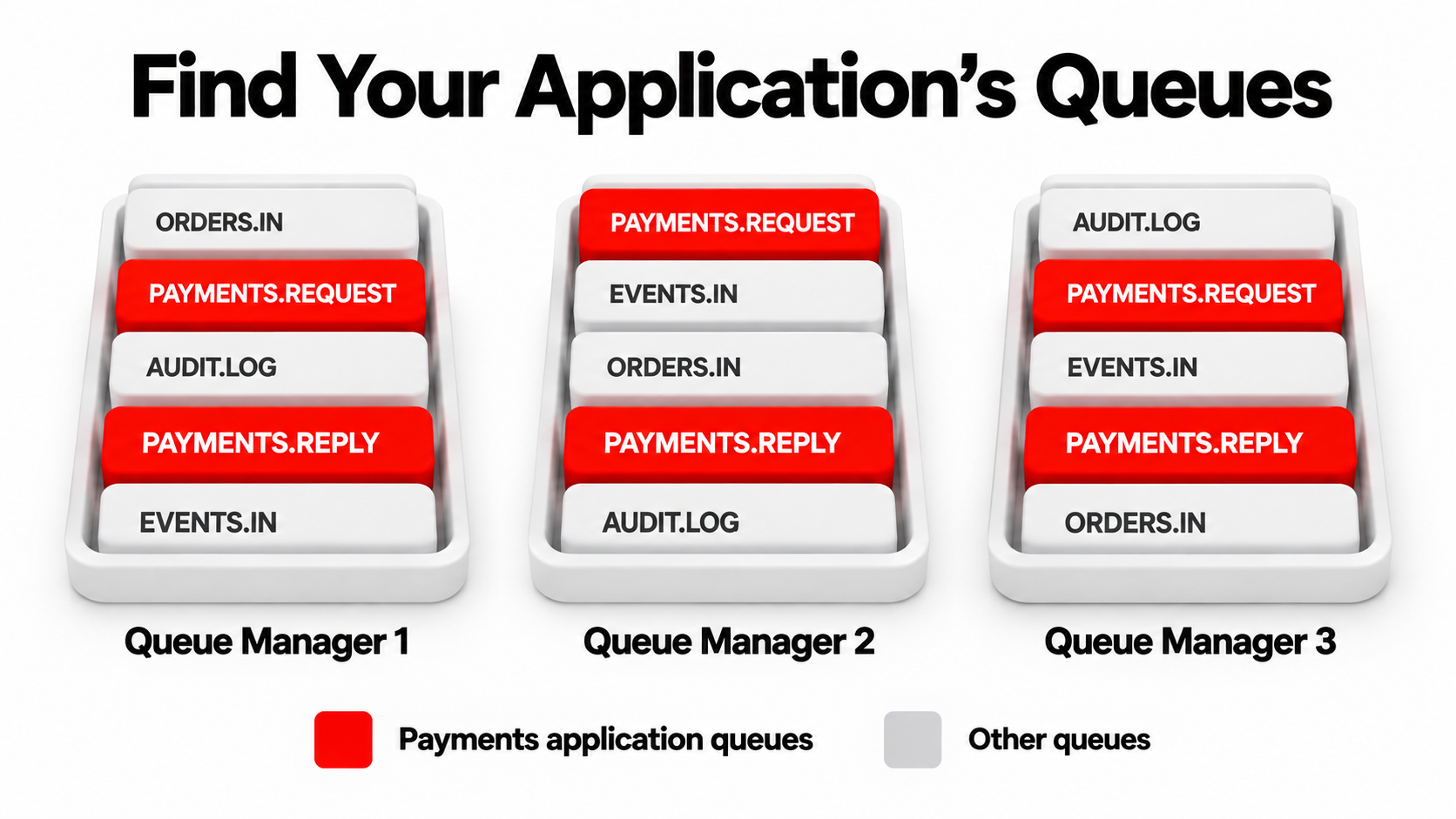
In Infrared360’s MQ Navigator, you can select multiple queue-manager connections and choose the object types you want to see. Regular-expression filters help narrow the results by name, and Favorites let you save searches you use regularly.
If your application uses queues across several queue managers, you can bring those matching queues into one results list. Your view follows the resources you’ve been given access to.
Create Objects and Update Their Configuration
You can create local, alias, remote, and model queues, along with channels, topics, subscriptions, processes, and namelists. Object detail screens provide access to configuration properties, including queue settings for triggering, clustering, and events.
For example, if a new application needs a remote queue definition, you can set the destination queue manager, destination queue, and transmission queue in the object’s configuration. You can inspect those values later when investigating a routing problem.
Infrared360 also supports channel operations and listener management. You can start or stop channels, and create, start, stop, or delete listeners. When defining a sender channel, specifying a remote queue manager allows Infrared360 to attempt creation of the corresponding receiver channel.
For existing queue managers, you can inspect and modify properties such as communications, monitoring, and publish/subscribe settings.
Browse, Inspect, and Work with MQ Messages
Examine Message Content and Headers
In Infrared360’s MQ Navigator, you can select multiple queue-manager connections and choose the object types you want to see. Regular-expression filters help narrow the results by name, and Favorites let you save searches you use regularly.
If your application uses queues across several queue managers, you can bring those matching queues into one results list. Your view follows the resources you’ve been given access to.
Copy, Move, and Import Messages
Once you’ve identified a message, you can select it for copying or moving to another queue or a file. You can also work with message ranges and import messages from supported queue or file sources.
Header options let you retain headers or remove a dead-letter header when appropriate. For an investigation, you might first copy a message to preserve it, then work with that copy in a test environment. The destination and header handling should match what you’re trying to accomplish.
Our MQ message triage guide walks through this process in more detail.
Put Messages for Testing
You can put MQI or JMS test messages with configurable content and headers. Reusable test cases help when you need to repeat a test after a configuration change or application fix.
Investigate Queue and Channel Problems
A growing queue tells you messages are accumulating. You still need to understand why.
In Infrared360, you can inspect queue depth, readers, writers, and available put/get statistics. The Handles view helps identify applications holding a queue open. Together, these details help you investigate whether a consumer is connected and whether messages are being processed.
You can also examine channel status and perform channel operations. Available actions include sequence-number resets and resolving in-doubt batches through commit or backout.
Configured alerts extend this work beyond the checks you perform manually. Conditions can include queue depth, message age, and activity. With statistical collection configured, historical reports help you compare the current situation with earlier activity. That can help establish whether a queue buildup is recurring or associated with a particular period of activity.
Give Teams Access to the MQ Resources They Need
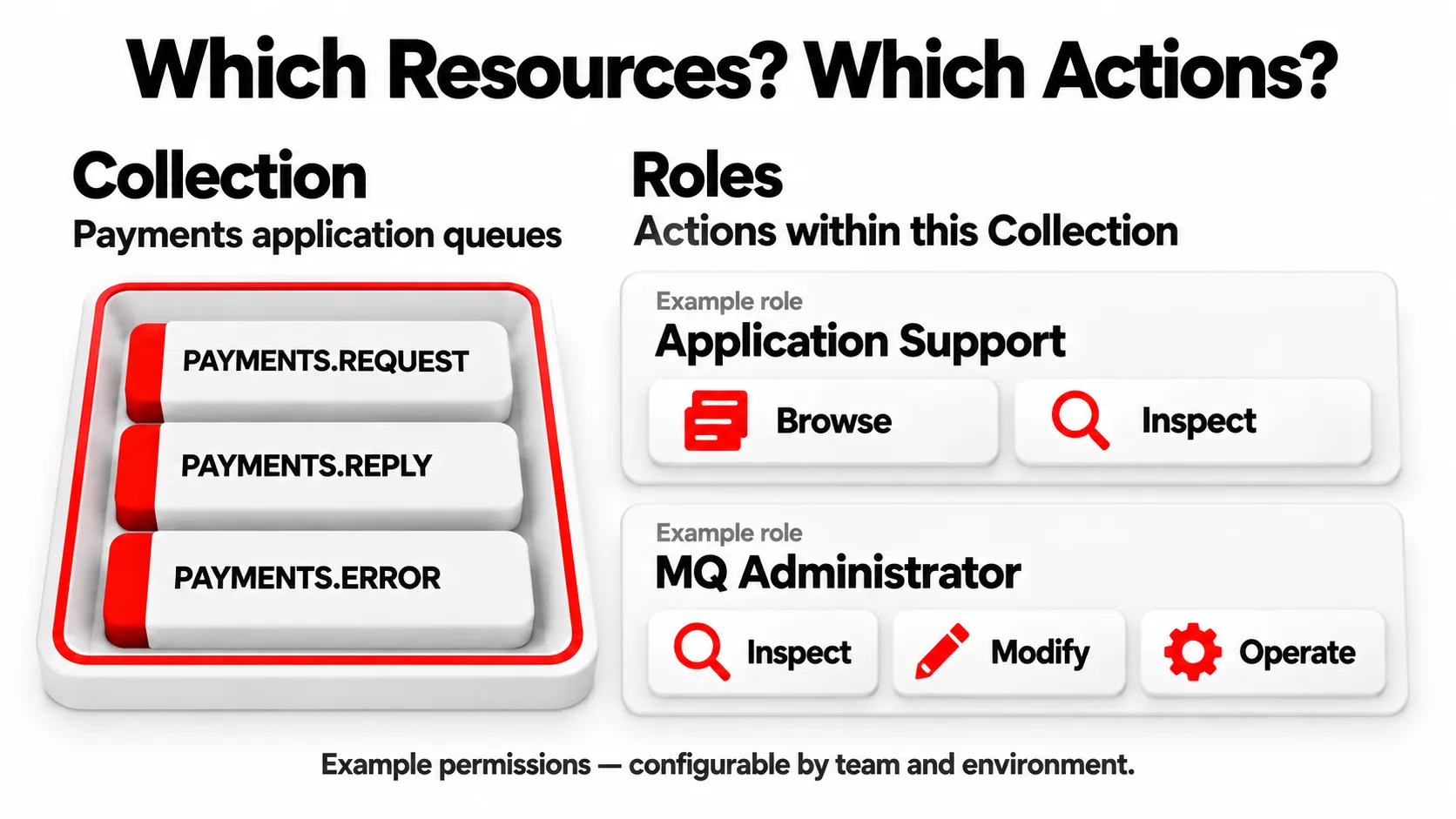
Different teams need different levels of access. Infrared360 uses Collections to define resource scope and Roles to define the actions available within that scope.
A Collection can group resources by application, department, or another meaningful boundary. That lets you organize access around the way your team supports MQ, even when an application’s resources span queue managers.
For example, a support team could inspect its application’s queues while designated administrators can change their configuration. The same person can have different permissions in different Collections, reflecting their responsibilities across environments.
These portal permissions are separate from native MQ security. Infrared360 also provides administration functions for OAM authority records and CHLAUTH records.
User audit reports let you review actions collected by Infrared360. That gives teams a record of activity performed through the portal when they need to review a change or investigate an issue.
Make Routine MQ Administration Repeatable
Run MQSC Commands Across Selected Queue Managers
MQSC Commander lets you enter commands or upload a script, then execute it against selected queue managers. This is useful when a configuration change needs to be applied across several environments.
Object cloning provides another way to reuse definitions. You can copy objects between queue managers and adjust attributes during cloning, such as changing an environment-specific naming prefix.
Schedule Tasks and Respond to Alerts
Infrared360 services can run on demand, on a schedule, or in response to an alert. You can configure scheduled backups of MQ definitions and OAM information, or arrange a channel operation for a defined operational condition.
For scheduled services, you define the target resources and execution schedule. You can review the execution history to check when a service ran and how long it took.
Optional notifications let you know when a service executes. These capabilities give administrators a way to make established procedures repeatable. Configuration backups preserve definitions and authority information; message-data recovery needs its own backup approach.
Bring Your MQ Explorer Connections into Infrared360
Infrared360’s MQ Explorer Import service can import existing queue-manager connection definitions, saving you from entering them individually. Passwords must be supplied separately because they aren’t included in the Explorer export.
This imports connection definitions rather than the entire Explorer workspace. Once the connections and permissions are configured, you can work through the tasks your team performs most often and evaluate how they fit your environment.
Frequently Asked Questions
Can I manage multiple queue managers in Infrared360
Yes. You can search across selected connections, filter objects, and use MQSC Commander to run commands against multiple queue managers. Your access depends on your assigned permissions.
Can developers get access to only their application queues
Yes. Collections define which resources users can access, and Roles determine what they can do. This supports application-specific access with different permissions for administrators, developers, and support teams.
Can I automate message transfers
Yes. Infrared360 has a Message Transfer Service for scheduled or alert-driven transfers. That service is intended for queues that are not actively consuming messages, including capturing messages for investigation and later replay.
Do I need to install a desktop client
No. Users access Infrared360 through a browser. The centrally deployed application connects to the configured MQ environments.